Have you ever turned on your laptop and it only opens the BIOS screen? It can be confusing and frustrating. Usually, laptops start Windows or another system. But if your laptop goes straight to BIOS, it means it cannot find the right place to start the computer. This guide will help you fix this problem step by step.
What Does It Mean When Your Laptop Boots to BIOS?
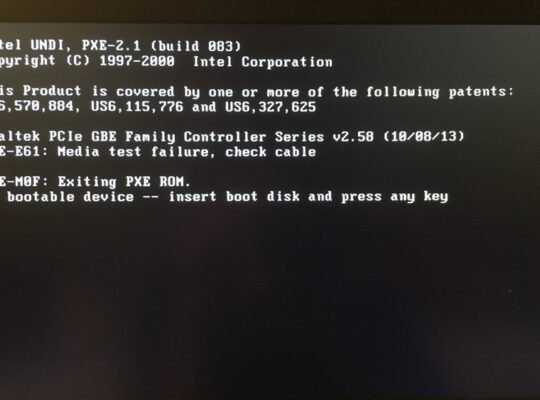
When your laptop boots to BIOS, it means it shows a special setup screen. This screen lets you change settings for your computer’s hardware. But the computer should only show this screen if it cannot find the operating system, like Windows. This problem can happen for many reasons.
- Your laptop cannot find the boot device (hard drive or SSD).
- The boot order in BIOS is wrong.
- The storage device has a problem or is not connected well.
- The CMOS battery is dead or low.
- The BIOS settings are incorrect.
Let’s learn how to fix these issues.
Step 1: Enter the BIOS Setup
First, you need to enter the BIOS screen. Usually, you press a key when the laptop starts. This key can be Delete, F2, Esc, or another key. Check your laptop manual or watch the first screen when you turn it on. It often says which key to press for BIOS.
Step 2: Check the Boot Priority
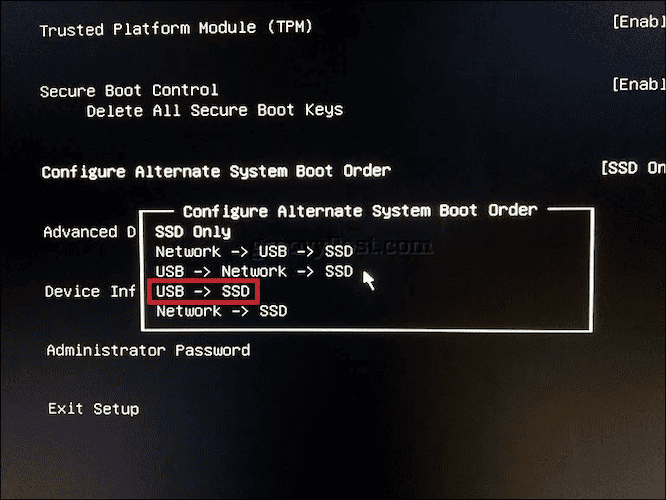
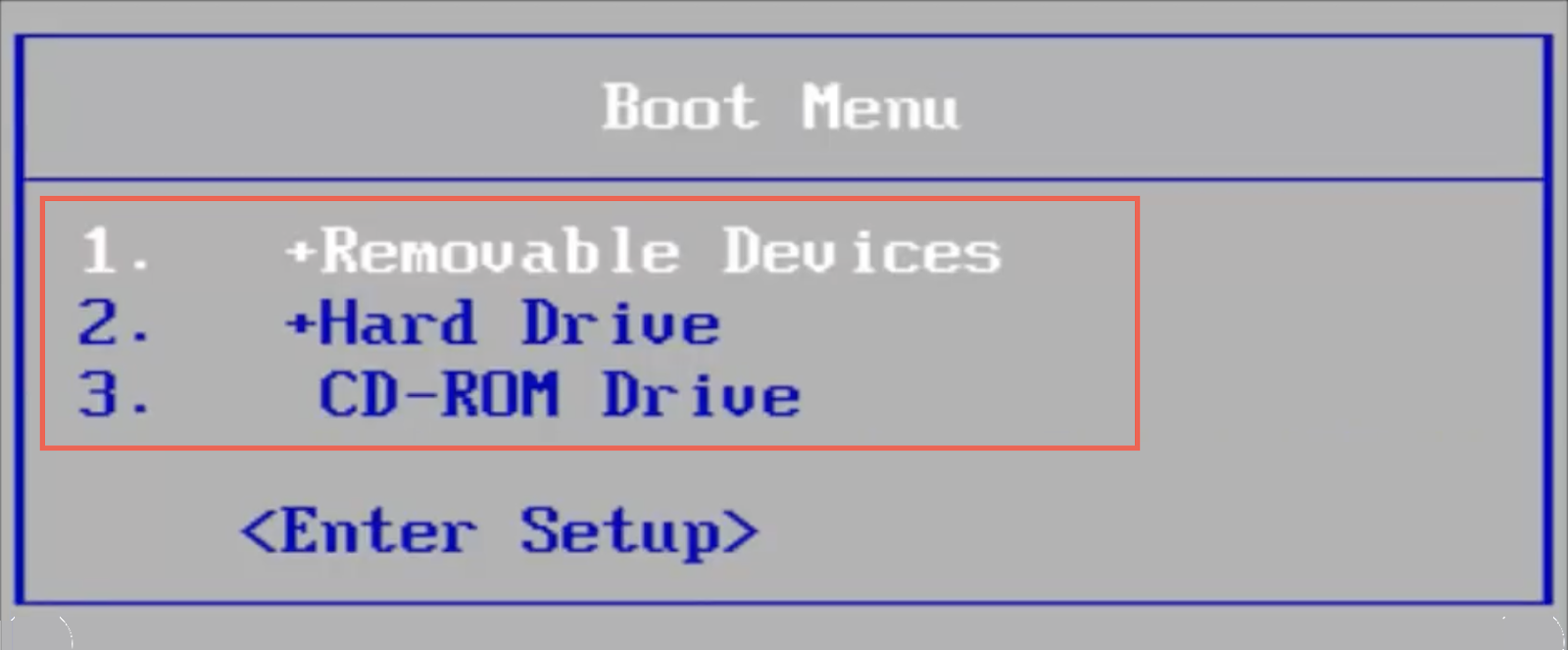
Boot priority tells your laptop where to look first to find the operating system. If it is set wrong, your laptop will not find Windows or another OS, and it will stay in BIOS.
Follow these steps:
- In BIOS, find the Boot tab or section.
- Look for Boot Priority or Boot Order.
- Make sure your hard drive or SSD with Windows is the first option.
- If you see a USB or CD/DVD drive first, change it.
- Save and exit BIOS (usually with F10 key).
After this, your laptop should try to boot from the right device.
Step 3: Check If BIOS Detects Your Hard Drive or SSD
Sometimes, BIOS does not see your hard drive or SSD. This means the laptop cannot start Windows.
To check:
- Go to BIOS and find Storage or Information tab.
- Look if your hard drive or SSD name shows.
- If it is not listed, the drive may be loose or broken.
Step 4: Check Physical Connections
If BIOS does not see your drive, check inside your laptop.
Warning: Turn off the laptop and unplug it from power before opening it.
- Remove the battery if possible.
- Open the back panel.
- Find the hard drive or SSD.
- Make sure the cables and connectors are tight and clean.
- If you see dust or dirt, gently clean it.
- Put everything back and try to start the laptop again.
Loose cables cause many boot problems.
Step 5: Reset BIOS Settings to Default
Sometimes, BIOS settings cause problems. Resetting BIOS to default can help.
To reset BIOS:
- Enter BIOS setup.
- Look for Load Optimized Defaults or Load Setup Defaults.
- Select it and confirm.
- Save changes and exit BIOS.
This will remove any wrong settings.
Step 6: Disable Fast Boot in BIOS
Fast Boot is a feature that starts your laptop quickly. But it can hide some devices and cause boot problems.
To disable Fast Boot:
- Enter BIOS setup.
- Find Fast Boot option in the Boot section.
- Set it to Disabled.
- Save and exit BIOS.
Try to reboot after this change.
Credit: www.groovypost.com
Credit: helpdeskgeek.com
Step 7: Check UEFI and Legacy Mode
Modern laptops use UEFI mode to start Windows. Older ones use Legacy BIOS mode. Sometimes, the wrong mode causes boot issues.
To check and change the mode:
- Enter BIOS setup.
- Look for Boot Mode, UEFI/Legacy Boot, or CSM settings.
- If your Windows was installed in UEFI mode, select UEFI.
- If Windows was installed in Legacy mode, select Legacy or enable CSM.
- Save and exit BIOS.
Note: Changing this can stop Windows from booting if chosen wrong.
Step 8: Replace CMOS Battery
The CMOS battery keeps BIOS settings saved. If it dies, BIOS loses settings and may boot to BIOS screen.
Symptoms of dead CMOS battery:
- Time and date reset every boot.
- Booting only to BIOS screen.
To fix:
- Buy a new CMOS battery (usually a CR2032 coin battery).
- Turn off laptop and unplug power.
- Open the back panel.
- Find and carefully replace the battery.
- Close the laptop and turn it on.
This often fixes boot problems.
Step 9: Use Windows Startup Repair
If BIOS sees your drive and boot order is correct, the problem may be Windows itself.
You can use Windows Startup Repair to fix boot files.
Steps:
- Create a Windows installation USB or DVD.
- Boot your laptop from this USB/DVD (change boot order if needed).
- Select Repair your computer instead of installing Windows.
- Choose Startup Repair option.
- Let the repair tool fix boot problems.
This can fix corrupted boot files.
Step 10: Update or Reflash BIOS
Sometimes, BIOS itself has bugs. Updating BIOS can help. But be careful. A wrong update can damage your laptop.
To update BIOS:
- Visit your laptop maker’s website.
- Find the correct BIOS update for your model.
- Follow their instructions carefully.
If you are not sure, ask a professional for help.
Summary Table: Quick BIOS Fixes
| Fix | How to Do It | Why It Helps |
|---|---|---|
| Check Boot Priority | Set hard drive first in boot order | Lets laptop find Windows first |
| Reset BIOS to Default | Load optimized defaults in BIOS | Fixes wrong settings |
| Disable Fast Boot | Turn off Fast Boot in BIOS | Allows full hardware detection |
| Check UEFI/Legacy Mode | Match mode with Windows installation | Fixes boot mode conflicts |
| Replace CMOS Battery | Change battery on motherboard | Saves BIOS settings correctly |
| Run Startup Repair | Use Windows install media repair tools | Fixes broken boot files |
When to Get Professional Help
If none of these steps fix your problem, your hard drive or motherboard may have a serious issue. You may need a technician to check it. Hardware problems sometimes need special tools and skills.
Remember, do not open your laptop if you are not sure what to do. You can cause more damage.
Frequently Asked Questions
Why Is My Pc Only Booting Into Bios?
Your PC boots into BIOS because it can’t find a bootable drive. Check boot order, drive connections, and CMOS battery. Fix corrupted boot files or reseat hardware if needed.
How Do I Fix Uefi Boot And Startup Problems?
Check and set the correct boot priority in UEFI BIOS, ensuring your OS drive is first. Verify drive connections and replace a dead CMOS battery. Disable Fast Boot and reset BIOS to optimized defaults. Run Windows Startup Repair if boot files are corrupted.
Update BIOS only if necessary.
How To Fix Bios Boot Loop On Laptop?
Check and set your SSD/HDD as the first boot device in BIOS. Reset BIOS to optimized defaults. Disable Fast Boot. Reseat RAM and drive cables. Run Windows Startup Repair or update BIOS if needed. Replace CMOS battery if problems persist.
How To Fix Boot Priority In Bios?
Enter BIOS by pressing the setup key during boot. Navigate to the Boot tab. Set your SSD/HDD with the OS as the first boot device. Save changes and exit. If issues persist, check drive connections or reset BIOS to optimized defaults.
Conclusion
Booting only to BIOS can feel scary. But many times, it is a simple setting or connection problem. This guide showed you easy steps to fix boot priority and UEFI settings. Check your boot order, make sure BIOS sees your hard drive, and set the right boot mode.
With patience, you can fix your laptop and get it running again. If not, ask for help. Computers can be tricky, but with small steps, you can find the problem.