Have you ever turned on your laptop and seen a message like “Working on Updates”? Then, the laptop stays on that screen for a very long time. It might even seem frozen. This problem can be frustrating. But don’t worry. This guide will help you fix it safely. We will use something called Safe Mode.
What Does “Working on Updates” Mean?
Your laptop often gets updates from Microsoft. These updates make your computer safer and faster. When you see “Working on Updates,” it means your laptop is trying to install these updates. Sometimes, the process takes a long time. Other times, it gets stuck.
If your laptop stays stuck for hours, it means something went wrong. The update might be frozen or broken. You cannot use your laptop until the problem is fixed.
Why Use Safe Mode?
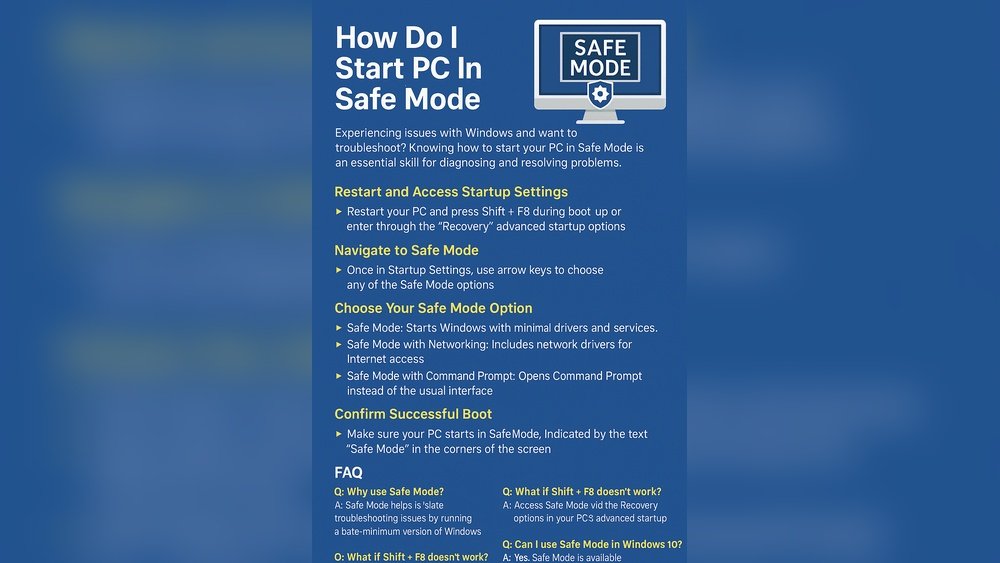
Safe Mode is a special way to start your laptop. It only uses the most basic programs. This helps you find and fix problems without extra software getting in the way.
Safe Mode can help you fix update problems. You can undo changes or remove broken updates safely.
How to Know If Your Laptop Is Really Stuck
First, wait at least 1-2 hours. Sometimes updates take time. If nothing changes after this time, your laptop might be stuck.
Signs your laptop is stuck:
- The screen stays on “Working on Updates” for many hours.
- The fan is very loud but nothing changes on the screen.
- You cannot turn off your laptop normally.
If this happens, follow the steps below.
Step 1: Force Restart Your Laptop
Press and hold the power button for 10 seconds. This will turn off your laptop.
Wait for 10 seconds, then press the power button again to turn it back on.
This simple step can sometimes fix the problem by stopping the update process.
Step 2: Enter Safe Mode
If the problem continues, you need to start your laptop in Safe Mode. Here is how:
How To Enter Safe Mode On Windows 10 Or Windows 11
- Turn off your laptop by holding the power button.
- Turn it on and as soon as you see the Windows logo, hold the power button again to turn it off.
- Repeat step 2 two more times. On the third time, your laptop will start in Windows Recovery Environment (WinRE).
- In the WinRE screen, click Troubleshoot.
- Click Advanced options.
- Click Startup Settings.
- Click Restart.
- When your laptop restarts, you will see a list of options. Press the number 4 key to start in Safe Mode.
Now your laptop is in Safe Mode.
Step 3: Undo or Fix the Updates
In Safe Mode, you can undo the updates that caused the problem.
How To Remove Recent Updates
- Click the Start button.
- Go to Settings (the gear icon).
- Click Update & Security.
- Click Windows Update on the left.
- Click View update history.
- Click Uninstall updates at the top.
- Look for the most recent update. Select it and click Uninstall.
- Follow the instructions to remove the update.
After uninstalling, restart your laptop normally to see if it works.
:max_bytes(150000):strip_icc()/004_how-do-i-start-windows-in-safe-mode-2624480-5bdc97e94cedfd0026f9b3dd.jpg "How to Fix a Laptop That Is Stuck on 'Working on Updates': Safe Mode Rescue 2")
Credit: www.lifewire.com

Credit: www.youtube.com
Step 4: Use System Configuration (msconfig) to Exit Safe Mode
Sometimes your laptop stays in Safe Mode even after fixing the problem. To fix this, use msconfig to turn off Safe Mode.
Steps To Exit Safe Mode
- Press Windows key + R to open the Run box.
- Type
msconfigand press Enter. - In the System Configuration window, click the Boot tab.
- Uncheck the box next to Safe boot.
- Click Apply and then OK.
- Restart your laptop.
Your laptop should start normally now.
Step 5: Use Command Prompt If msconfig Does Not Work
If msconfig does not work or you cannot open it, use Command Prompt.
How To Use Command Prompt To Exit Safe Mode
- Open the Start menu and search for cmd.
- Right-click Command Prompt and select Run as administrator.
- Type the following command and press Enter:
bcdedit /deletevalue {current} safeboot- Close the Command Prompt window.
- Restart your laptop.
This command tells your laptop to stop starting in Safe Mode.
Step 6: Use Windows Recovery Environment (WinRE) If You Can’t Access Windows
If you cannot log in to Windows, use WinRE to open Command Prompt.
Follow these steps to get to WinRE:
- Turn off your laptop by holding the power button.
- Turn it on and immediately hold the power button again to turn it off.
- Repeat this three times.
- On the fourth start, your laptop will enter WinRE.
From WinRE, go to Troubleshoot > Advanced options > Command Prompt.
Then, use the command above to exit Safe Mode.
Extra Tips to Avoid Getting Stuck on Updates
- Always keep your laptop plugged in during updates.
- Do not turn off your laptop while updates are installing.
- Try to update when you have time, so you can wait for it to finish.
- Keep your laptop’s storage free to allow updates to install.
When to Ask for Help
If none of these steps work, it may be time to get help.
You can contact a computer repair shop or a trusted friend who knows computers. Sometimes the problem is bigger and needs expert help.
Summary
To fix a laptop stuck on “Working on Updates,” start by force restarting it.
If still stuck, enter Safe Mode using the Windows Recovery Environment.
Remove bad updates in Safe Mode via Settings.
Use msconfig or Command Prompt to exit Safe Mode.
If you cannot access Windows, use WinRE to open Command Prompt and fix Safe Mode.
Follow the steps carefully and your laptop will work again.
Remember, patience is key when fixing update problems. Good luck!
Frequently Asked Questions
How To Fix Laptop Stuck On Working On Updates?
Restart your laptop by holding the power button until it shuts down. Turn it on and let updates finish. Use Safe Mode to disable stuck updates via msconfig or Command Prompt if needed.
How To Fix Stuck In Safe Mode?
To fix being stuck in Safe Mode on Windows, open msconfig, uncheck “Safe boot,” and restart. Alternatively, run Command Prompt as admin and enter bcdedit /deletevalue {current} safeboot, then reboot. On Android, restart the device or tap the “Safe mode is on” notification to exit Safe Mode.
How To Safe Mode Windows From Update Stuck?
To exit Safe Mode from a Windows update stuck, press Windows + R, type msconfig, and hit Enter. In the Boot tab, uncheck “Safe boot,” click Apply, then OK, and restart your PC. Alternatively, run Command Prompt as admin and enter bcdedit /deletevalue {current} safeboot, then restart.
How To Get Unstuck From Safe Mode?
To get unstuck from Safe Mode on Windows, open msconfig, uncheck “Safe boot,” then restart your PC. Alternatively, run Command Prompt as admin and enter: bcdedit /deletevalue {current} safeboot. On Android, restart your device or tap the “Safe mode is on” notification to disable it.