A flickering laptop screen can be very annoying. Sometimes, it makes it hard to work or watch videos. But why does this happen? Mostly, flickering comes from two main reasons: cable problems or driver problems. In this article, we will learn how to find out which one is the cause and how to fix it.
What Does a Flickering Screen Look Like?
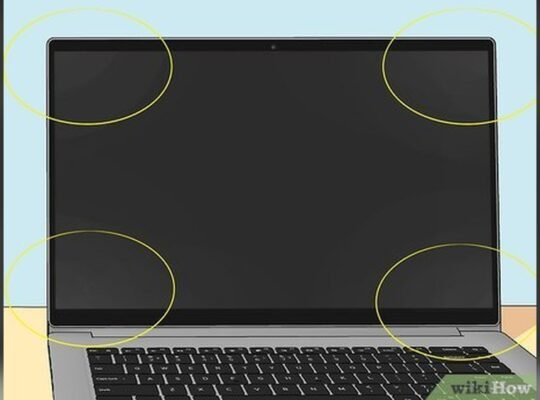
Before we start fixing, let’s understand what flickering means. Flickering means the screen flashes or blinks very fast. Sometimes, it looks like the screen is shaking or turning on and off quickly. This can happen all the time or only when you do certain things.
Why Does Your Laptop Screen Flicker?
There are many reasons for screen flickering. But the two main causes are:
- Loose or damaged cable inside the laptop.
- Problems with the screen driver or graphics driver.
Credit: osxdaily.com
Understanding Cable Issues
Inside your laptop, a cable connects the screen to the main board. This cable sends video signals. If this cable is loose, bent, or broken, the screen can flicker.
Signs Of Cable Problems
- The flickering happens when you move the screen back and forth.
- The screen flickers only at certain angles.
- You see lines or strange colors on the screen.
- The problem started after dropping or hitting your laptop.
How To Check And Fix Cable Problems
Fixing cable issues usually needs opening the laptop. If you do not feel comfortable opening your laptop, it is best to take it to a technician.
- Turn off your laptop and remove the battery if possible.
- Open the back cover carefully using the right tools.
- Locate the cable that connects the screen to the motherboard.
- Check if the cable is loose or damaged.
- Push the cable gently back into place if loose.
- If the cable looks damaged, it needs to be replaced.
- Close the laptop and turn it on to see if the flickering stops.
Sometimes, the cable is inside the screen hinge. Moving the screen slowly can help check if the cable is the problem.
Understanding Driver Issues
Drivers are small programs that help your laptop talk to the hardware. The screen driver, called the graphics driver, controls how the screen shows images. If the driver is old or wrong, the screen may flicker.
Signs Of Driver Problems
- The flickering happens when you open certain apps or games.
- The flickering started after a Windows update.
- The flickering happens no matter how you move the screen.
How To Fix Driver Problems
Follow these simple steps to update or fix your graphics drivers:
- Click the Start button and open Device Manager.
- Find the section called Display adapters and click it.
- Right-click your graphics device and select Update driver.
- Choose Search automatically for updated driver software.
- Wait while Windows looks for the newest driver and installs it.
- Restart your laptop after the update.
If this does not fix the flickering, you can also try:
- Go to your laptop or graphics card maker’s website.
- Download the latest driver for your exact laptop model.
- Install the driver manually and restart the laptop.
Adjusting Display Settings
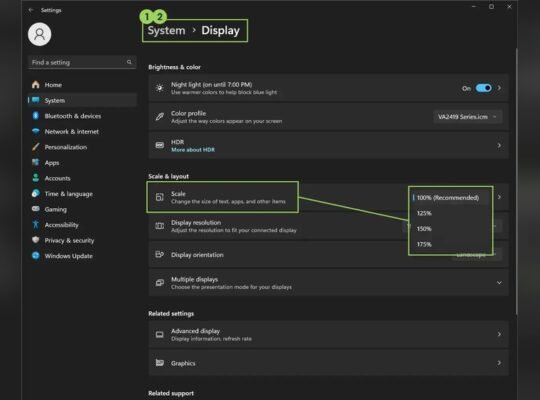
Sometimes, the flicker comes from wrong screen settings. Follow these steps to check your refresh rate:
- Right-click on the desktop and select Display settings.
- Scroll down and click Advanced display settings.
- Look for Refresh rate or Screen refresh rate.
- Set it to the recommended value, usually 60 Hz or higher.
- Click Apply and see if the flickering stops.
Other Possible Causes of Flickering
Sometimes, flickering is not just cable or driver problems. Other causes include:
- Faulty RAM: Bad memory can cause screen problems.
- Software bugs: Some apps can cause flickering.
- Power issues: A bad charger or battery may cause flickers.
How Bad Ram Causes Flickering
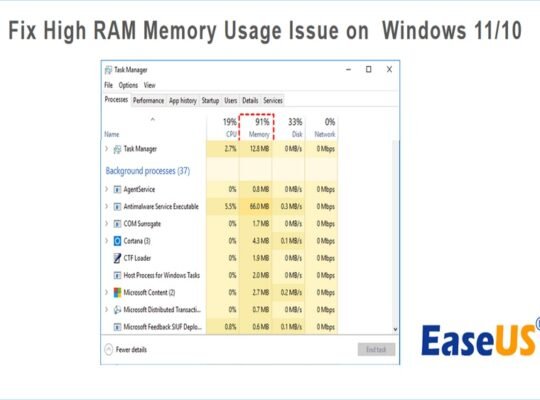
RAM stores data for your programs. If RAM is bad, data gets corrupted. This can cause flickering or strange screen behavior.
- Shared Memory: Some laptops use RAM for graphics. Bad RAM means bad video data.
- Data Corruption: Faulty RAM sends wrong info to the screen.
- System Instability: Bad RAM causes crashes and flickering.
Signs Of Bad Ram
- Screen flickers more when running many programs.
- Computer crashes with blue screen errors.
- Random restarts or freezes.
If you think RAM is the problem, you can test it with free tools like MemTest86. Or take your laptop to a technician.
Credit: milaaj.ae
Summary: Cable Vs. Driver Issues
| Problem Type | Signs | How to Fix |
|---|---|---|
| Cable Issue |
Flickering when moving screen Flicker at certain angles Lines or colors on screen Problem after physical impact |
Check and reconnect cable Replace damaged cable Seek professional help if unsure |
| Driver Issue |
Flicker with certain apps Flicker after updates Flicker at all screen angles |
Update graphics driver Adjust refresh rate Reinstall driver if needed |
Final Tips to Avoid Flickering
- Keep your drivers updated regularly.
- Handle your laptop carefully to avoid cable damage.
- Use good quality chargers and batteries.
- Close apps that cause flickering until fixed.
- Restart your laptop if flickering starts suddenly.
Fixing a flickering laptop screen takes patience. Start with easy steps like updating drivers. Then check cables if the problem stays. If you don’t feel sure, ask for professional help. A good screen makes using your laptop much better.
Frequently Asked Questions
How To Resolve Laptop Screen Flickering Issue?
Update your graphics driver via Device Manager or the manufacturer’s site. Adjust the display refresh rate to the recommended setting. Check and reseat the screen cable if accessible. Test RAM for faults, as bad memory can cause flickering. Restart your laptop after each step to apply changes.
Is Screen Flickering A Software Issue?
Screen flickering often results from software issues like outdated or incompatible display drivers. Updating drivers usually fixes it.
How To Fix Laptop Screen Stuttering?
Update your graphics drivers via Device Manager or the manufacturer’s website. Adjust your screen refresh rate to the recommended setting. Check and reseat the display cable if accessible. Test RAM for faults, as bad RAM can cause stuttering. Restart your laptop after changes.
Can Faulty Ram Cause Screen Flickering?
Yes, faulty RAM can cause screen flickering by corrupting graphics data or causing system instability. This often affects integrated graphics using shared memory.