Is your laptop screen too dark? You might think it is broken. But many times, you can fix it yourself. This guide will help you understand what causes a dim laptop screen. It will also teach you how to check if the inverter or backlight is the problem.
What Makes a Laptop Screen Dim?
A laptop screen can get dim for many reasons. Sometimes, it is a simple setting. Other times, it is a hardware issue. Here are some common causes:
- Low brightness setting
- Adaptive brightness turned on
- Power-saving mode lowering brightness
- Faulty backlight
- Bad inverter
- Loose or damaged cable inside the laptop
- Outdated graphics drivers
Before you open your laptop, try to fix the simple things first.
Check and Fix Software Settings
Many times, the screen is dim because of software settings. Follow these easy steps:
1. Adjust Brightness Manually
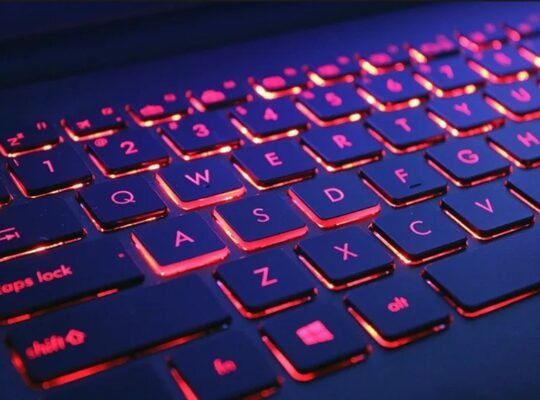
Use the brightness keys on your keyboard. Usually, they are the Fn key plus a sun icon key. Try to increase the brightness to the max.
2. Turn Off Adaptive Brightness
Adaptive brightness changes screen light based on your environment. Sometimes it makes the screen too dark. To turn it off:
- Open Settings.
- Go to System > Display.
- Find Brightness and color.
- Turn off Change brightness automatically or similar option.
3. Check Power And Battery Settings
Power-saving modes can lower screen brightness to save battery. To check:
- Go to Control Panel or Settings.
- Open Power Options.
- Select your current power plan.
- Click Change plan settings.
- Make sure the screen brightness is set to high.
- Turn off any Battery Saver mode.
4. Turn Off Night Light Or Color Filters
Night Light or color filters can make your screen look dim or warm. To turn them off:
- Open Settings > System > Display.
- Find Night Light and turn it off.
- Check for any color filters and disable them.
5. Update Graphics Drivers
Old or broken graphics drivers can cause screen problems. To update:
- Open Device Manager.
- Find Display adapters.
- Right-click your graphics card and select Update driver.
- Choose Search automatically for updates.
If you prefer, visit your laptop maker’s website (like Dell, HP, Lenovo) to download the latest driver.
6. Update Bios
Sometimes, a laptop’s BIOS needs updating. This can fix power and screen issues. Check your laptop brand’s support page for BIOS updates. Follow their instructions carefully.
When Software Fixes Do Not Work
If your screen stays dim after all these steps, it might be a hardware issue. The main hardware parts that cause dim screens are the inverter and backlight.
What Is the Inverter?
The inverter is a small circuit inside your laptop. It gives power to the backlight. Without it, the screen will be very dark or black.
Older laptops use a cold cathode fluorescent lamp (CCFL) backlight. These need an inverter to work. Newer laptops with LED backlights may not have an inverter.

Credit: www.reddit.com
What Is the Backlight?
The backlight lights up the screen. Without it, the screen looks black or very dim. It is usually a small light behind the LCD screen.
In older laptops, the backlight is a tube light. In new laptops, it is made of many tiny LEDs.
How to Know if the Problem Is Inverter or Backlight?
Here are some tips to find out the problem:
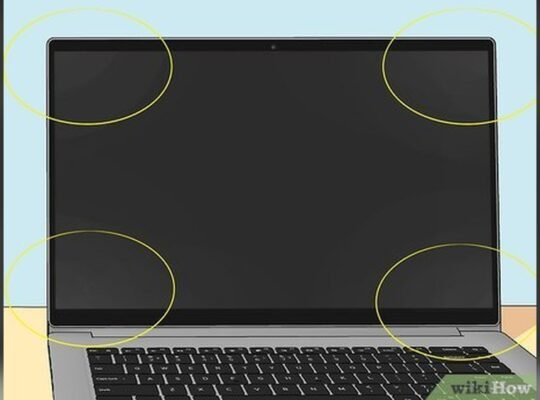
- Look closely: Shine a flashlight on your screen when it is turned on.
- If you see the desktop or images faintly, the backlight is not working well. It might be the inverter or backlight.
- If the screen is completely black, it might be a cable or screen problem.
Testing The Inverter
The inverter powers the backlight. If it fails, the screen will be very dim or black.
- Try gently pressing on the screen bezel. Sometimes, this helps if the inverter cable is loose.
- If you are handy, open the laptop and check the inverter cable.
- Look for damage or loose connections.
- Replace the inverter if you find it faulty.
Testing The Backlight
If the inverter is fine, the problem might be the backlight. Backlight problems are harder to fix.
- Backlight replacement often needs expert help.
- If your laptop uses LED backlight, the whole screen may need replacement.
- Try connecting your laptop to an external monitor.
- If the external screen is bright, then your laptop screen or backlight is the issue.
Simple Steps to Fix Hardware Problems
If you want to try fixing hardware problems yourself, here are some steps:
| Step | What to Do | Why |
|---|---|---|
| 1 | Turn off your laptop and unplug it. | To avoid electric shock and damage. |
| 2 | Remove the battery if possible. | For safety and to fully power off the laptop. |
| 3 | Open the screen bezel carefully. | To access the inverter and backlight cables. |
| 4 | Check all cables for loose connections. | Loose cables can cause dim screens. |
| 5 | Replace the inverter if you have a new one. | Inverters can fail and cause dim screens. |
| 6 | Test the screen after reassembling. | To see if the problem is fixed. |
Warning: Opening a laptop can be risky. If you are not sure, take it to a professional.
Summary: Inverter vs. Backlight Problems
Here is a quick comparison between inverter and backlight issues:
| Problem | Symptoms | Fix |
|---|---|---|
| Inverter | Screen very dim or black but you see faint images with flashlight. | Replace inverter or check cables. |
| Backlight | Screen very dark, no images seen even with flashlight. | Backlight or screen replacement needed. |

Credit: www.youtube.com
Final Tips
- Always start with software fixes.
- Try updating drivers and settings first.
- Test with an external monitor to isolate the problem.
- Be careful if opening your laptop.
- Seek professional help for hardware repairs.
By following these steps, you can often fix a dim laptop screen. It may be simple or need some work. But understanding inverter and backlight helps a lot.
Frequently Asked Questions
What Causes A Laptop Screen To Be Dim?
A laptop screen dims due to low brightness settings, enabled adaptive brightness, power-saving modes, outdated graphics drivers, or hardware issues like backlight or inverter failure. Checking and adjusting settings or updating drivers often resolves the problem; persistent dimness may require professional hardware repair.
Why Is My Laptop Screen Dark Even On Full Brightness?
Your laptop screen stays dark at full brightness due to adaptive brightness, battery saver, or night light settings. Outdated graphics drivers or hardware issues like a faulty backlight or inverter can also cause this. Check display settings, update drivers, and test with an external monitor to diagnose.
Why Is My Laptop Screen Barely Visible?
A laptop screen may be barely visible due to low brightness settings, enabled adaptive brightness, or power-saving modes. Hardware issues like a failing backlight, inverter, or loose cables can also cause dimness. Updating graphics drivers or checking display settings often resolves the problem quickly.
Why Is My Laptop On But The Screen Is Dark?
A dark laptop screen with power on often results from incorrect brightness settings, enabled adaptive brightness, or power-saving modes. It may also indicate hardware issues like a faulty backlight, inverter, or loose cable. Updating graphics drivers or testing with an external monitor helps identify the cause.