

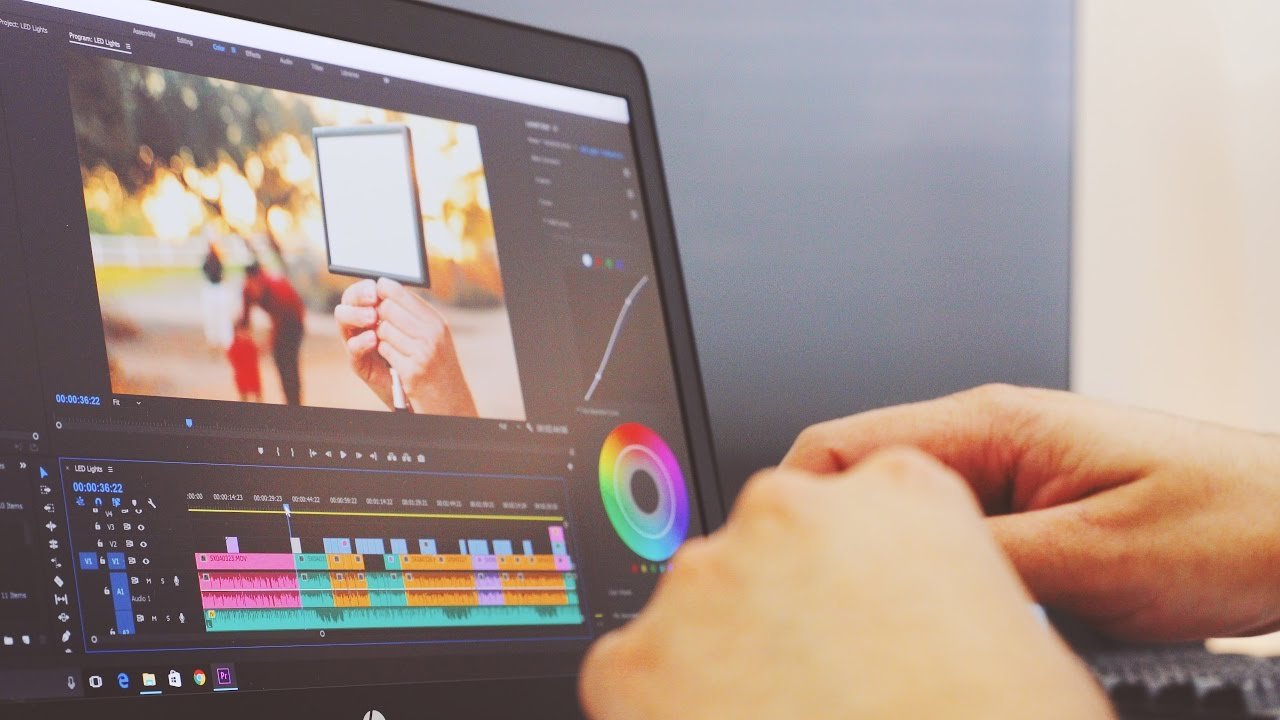
Looking for the best laptop to run Adobe Premiere Pro smoothly? Whether you’re editing videos for work, school, or your passion project, having the right laptop can make all the difference.
You don’t want slow rendering, lagging timelines, or crashes that waste your time and creativity. You’ll discover top laptops that handle video editing like a pro, so you can focus on making amazing videos without frustration. Keep reading to find the perfect match for your editing needs and budget.
Key Features For Video Editing Laptops
Choosing the right laptop for Adobe Premiere Pro is important. Video editing needs strong hardware to handle big files and complex projects. Some key features make a laptop great for video editing. These features help the software run smoothly and save time during editing. Below are the main features to consider for a video editing laptop.
Processor Power
The processor is the brain of the laptop. A fast processor helps in quick video rendering and smooth playback. Look for laptops with at least a quad-core processor. Intel i7 or AMD Ryzen 7 processors work well for editing tasks.
Graphics Performance
A dedicated graphics card improves video editing speed. It helps with rendering effects and previews. NVIDIA GeForce or AMD Radeon GPUs are good choices. Integrated graphics may slow down your work.
Ram And Storage
Video editing needs plenty of RAM. Aim for 16GB or more to avoid lag. Storage should be fast and large. SSD drives offer quick access to files and software. Choose at least 512GB of storage space.
Display Quality
A clear and colorful screen shows your videos accurately. Look for laptops with Full HD or higher resolution. IPS panels offer better color and wider viewing angles. A good display helps with precise editing.
Port Selection
Many ports let you connect devices easily. USB-C and Thunderbolt ports are useful for fast data transfer. HDMI output helps to connect external monitors. Multiple ports give flexibility for accessories.
Battery Life
Video editing uses much power, so battery life matters. A laptop with longer battery time helps during travel or outdoor work. Aim for laptops that last at least 6 hours on a single charge.
Top Laptops For Adobe Premiere Pro In 2025
Choosing the right laptop for Adobe Premiere Pro is crucial for smooth video editing. The year 2025 brings new models with powerful processors and better graphics. These laptops handle heavy video files and complex edits with ease. Finding a laptop that fits your needs and budget is easier with the right information. Below, we explore top laptops for Adobe Premiere Pro in 2025, divided into four key categories.
High-end Performance Picks
These laptops deliver fast processing and excellent graphics. They come with the latest Intel or AMD processors. Dedicated GPUs like NVIDIA RTX 40 series boost rendering speed. Large RAM, often 32GB or more, helps with multitasking. Storage uses fast SSDs for quick file access. These models suit professional editors working on 4K or higher videos. Examples include Dell XPS 17 and MacBook Pro 16-inch.
Budget-friendly Options
Editing on a budget is possible with these laptops. They offer good performance at a lower price. Mid-range processors like Intel i5 or AMD Ryzen 5 are common. Graphics may be integrated or entry-level dedicated GPUs. RAM usually ranges from 16GB to 8GB, enough for basic editing. Storage options include SSDs for faster editing workflows. Lenovo IdeaPad 5 and Acer Swift 3 are popular choices.
Best For Portability
Lightweight and slim laptops fit editors who travel often. These models balance power and mobility well. Battery life lasts through long editing sessions. Screens are usually 13 to 14 inches for easy carrying. Processors are efficient, like Intel Evo or Apple M2 chips. They support Premiere Pro without slowing down. Consider MacBook Air M2 and Dell XPS 13 for portability.
Laptops With Superior Displays
Editing needs accurate colors and sharp visuals. These laptops have high-resolution screens with wide color ranges. OLED and IPS panels are common for deep blacks and bright colors. Screen sizes range from 15 to 17 inches for detailed views. Some include touch screens for easier control. Look for models like ASUS ProArt StudioBook and HP Spectre x360.
Comparing Laptop Specifications
Choosing the right laptop for Adobe Premiere Pro requires careful comparison of key specifications. Video editing demands strong hardware to handle high-resolution files smoothly. Each part of the laptop affects performance and editing speed.
Understanding the roles of the CPU, GPU, memory, and storage helps pick the best laptop for your editing needs. Let’s break down these important specs.
Cpu Benchmarks
The CPU is the brain of the laptop. It handles all the editing tasks and processes video data. Higher clock speeds and more cores improve performance. Intel Core i7 and i9 or AMD Ryzen 7 and 9 are popular choices. Look for CPUs with strong single-core and multi-core performance. This helps with rendering and exporting videos faster.
Gpu Capabilities
The GPU accelerates effects and video previews in Premiere Pro. A dedicated graphics card is essential for smooth editing. Nvidia GeForce RTX or AMD Radeon RX series offer good support. More VRAM means better handling of 4K and complex projects. Check if the GPU supports CUDA or OpenCL for optimized performance.
Memory And Speed
RAM allows your laptop to manage multiple tasks at once. Video editing needs at least 16GB of RAM. Faster RAM speeds improve responsiveness and reduce lag. 32GB is better for larger projects or 4K footage. More memory helps keep your workflow smooth and avoids crashes.
Storage Solutions
Storage speed affects how quickly files load and save. Solid State Drives (SSD) are much faster than traditional hard drives. NVMe SSDs offer the best performance for video editing. Choose at least 512GB of SSD storage to keep your projects and software. External drives can add more space but internal speed is key.
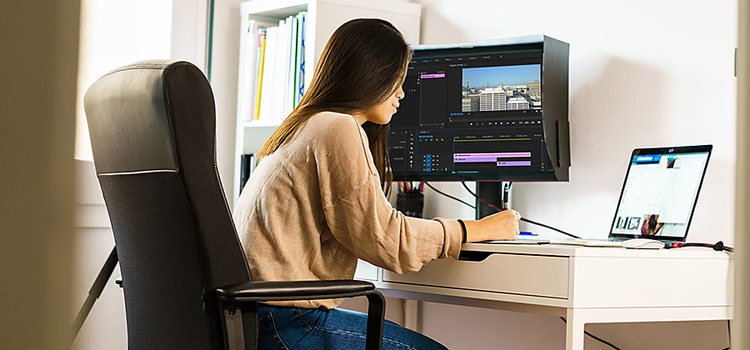
Credit: www.adobe.com
Optimizing Laptops For Premiere Pro
Optimizing a laptop for Adobe Premiere Pro boosts editing speed and smoothness. This software demands strong hardware and smart settings. Simple upgrades and tweaks improve your editing experience. Focus on memory, graphics power, cooling, and software adjustments. These steps help handle large files and complex projects easily.
Upgrading Ram And Storage
RAM lets Premiere Pro run many tasks at once. More RAM means fewer slowdowns during editing. Aim for at least 16GB or more for smooth work. Storage speed also matters. Use SSDs instead of traditional hard drives. SSDs load files faster, reducing wait times. Bigger storage keeps all your video files ready and organized.
External Gpu Support
External GPUs add extra graphics power. They connect to laptops through Thunderbolt ports. This upgrade improves rendering and playback performance. External GPUs handle effects and high-resolution videos better. They help laptops without strong built-in graphics. Choose a compatible external GPU for best results.
Cooling Solutions
Video editing heats up laptops quickly. Good cooling keeps performance steady. Use cooling pads or stands with fans. They lower laptop temperature during long sessions. Clean fans and vents often to avoid dust buildup. Cooler laptops prevent slowdowns and hardware damage.
Software Settings For Performance
Adjust Premiere Pro settings for faster editing. Lower playback resolution for smoother previews. Enable GPU acceleration in project settings. Clear cache regularly to free up space. Close other programs to save system resources. These small changes make editing more efficient.
Buying Tips For Video Editors
Choosing the right laptop for Adobe Premiere Pro is a big decision for video editors. Many factors affect your editing experience and project speed. Understanding key buying tips helps you make the best choice. Focus on specs, budget, future needs, support, and real user feedback.
Balancing Specs And Budget
Video editing needs strong hardware. Prioritize a fast processor and plenty of RAM. A dedicated graphics card boosts rendering speed. Storage space matters for large video files. Choose SSD for faster access. Set a budget, but avoid cutting corners on essentials. A good balance keeps performance smooth without overspending.
Future-proofing Your Purchase
Editing software updates demand more power over time. Select a laptop with upgrade options. More RAM slots or extra storage space help later. Pick the latest CPU generation for longer use. Aim for a machine that stays fast for years. This saves money by delaying the need for a new laptop.
Warranty And Support
Reliable warranty protects your investment. Check the length and coverage details. Some brands offer on-site repairs or fast replacements. Good customer service reduces downtime if problems arise. Choose a laptop brand with strong support reputation. This offers peace of mind during intense editing work.
User Reviews And Reliability
Real user experiences reveal hidden issues. Read reviews focusing on video editing performance. Look for comments on heat, noise, and build quality. Reliable laptops handle long editing sessions well. Avoid models with frequent hardware failures. User feedback guides you toward trusted choices.

Credit: www.rtings.com
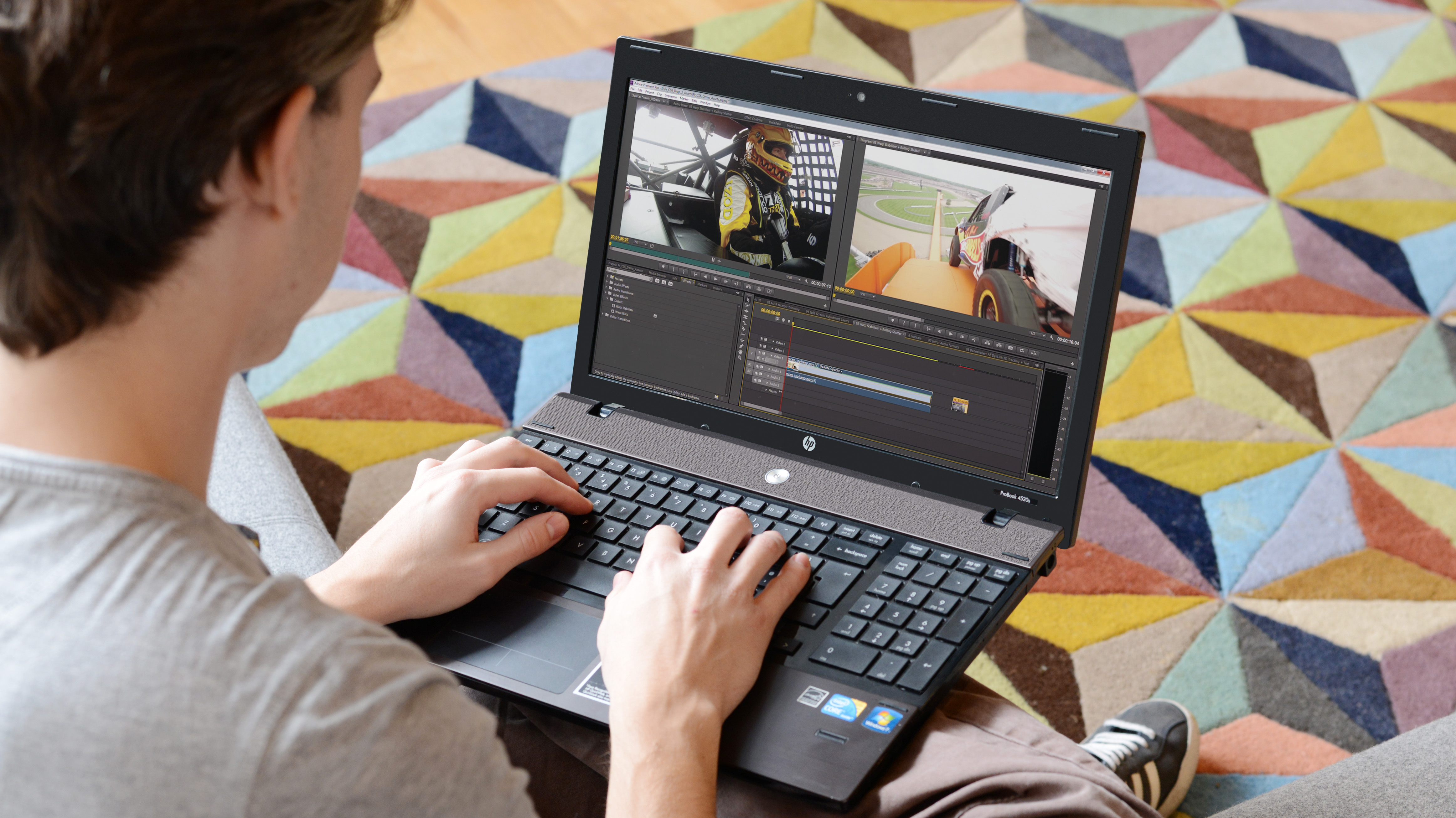
Credit: www.digitalcameraworld.com
Frequently Asked Questions
What Laptop Specs Are Best For Adobe Premiere Pro?
A laptop with a powerful CPU, at least 16GB RAM, and a dedicated GPU performs best. Fast SSD storage and a high-resolution display also improve editing efficiency and playback smoothness.
Which Processor Is Ideal For Video Editing In Premiere Pro?
Intel Core i7 or AMD Ryzen 7 and above are ideal. These processors handle multitasking and rendering tasks efficiently, reducing lag during editing.
How Much Ram Do I Need For Smooth Premiere Pro Editing?
At least 16GB RAM is recommended for smooth editing. More RAM allows better multitasking and handling of large video files without slowdowns.
Is A Dedicated Gpu Necessary For Adobe Premiere Pro?
Yes, a dedicated GPU accelerates rendering and playback. NVIDIA or AMD GPUs with at least 4GB VRAM enhance performance significantly.
Conclusion
Choosing the right laptop boosts your video editing experience. Fast processors and enough RAM make editing smooth. A good screen helps see colors clearly. Storage space matters for large video files. Portability suits editors who work on the go. Balance features with your budget carefully.
These laptops support Adobe Premiere Pro well. Pick one that fits your editing needs. Your projects will run faster and easier. Happy editing with the best laptop for you!